
WordPress 7.0 AI Update: Safe Upgrade Guide for Freelancers
WordPress 7.0 AI Update: Safe Upgrade Guide for Freelancers
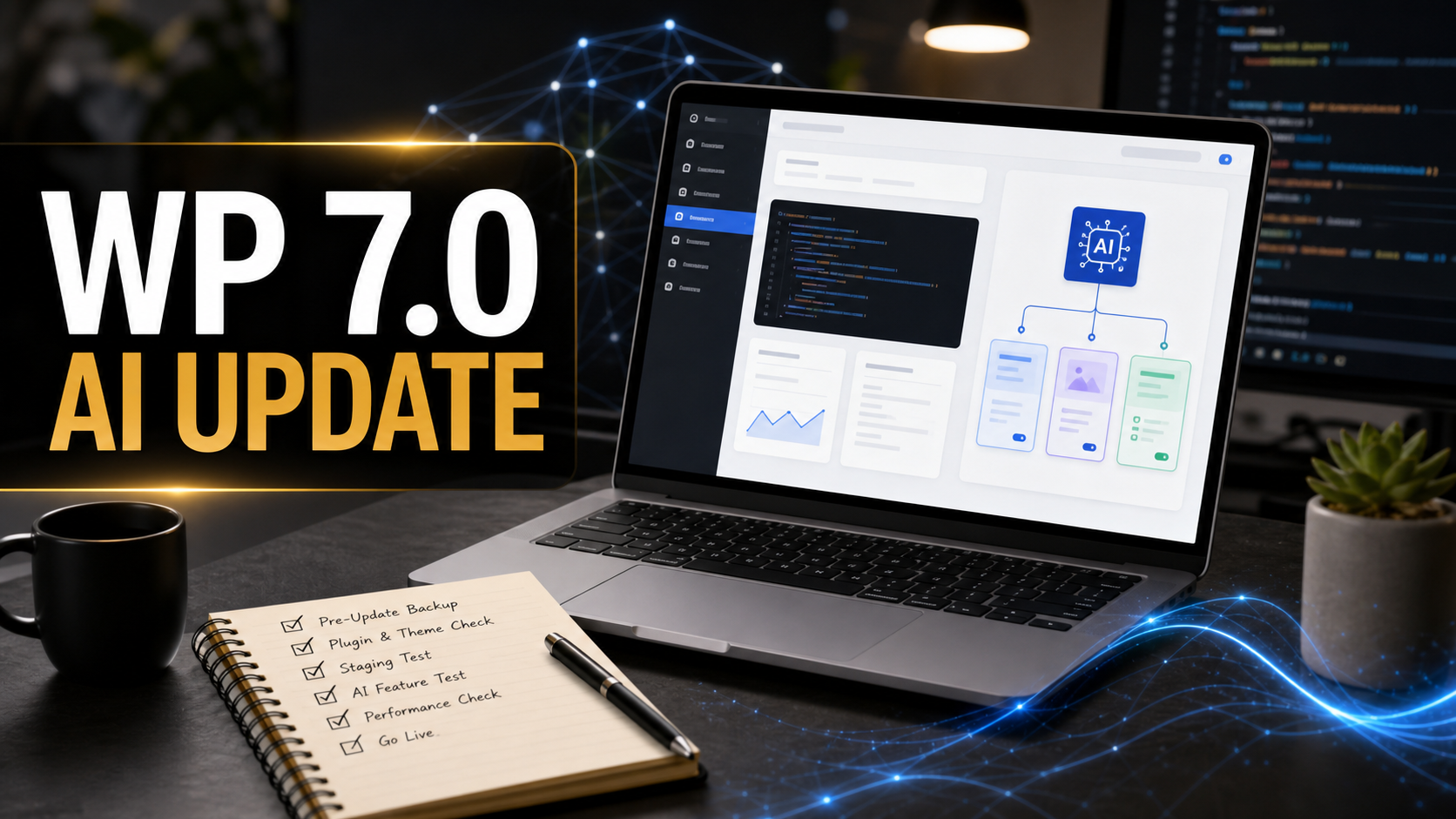
WordPress 7.0 “Armstrong” is now live, and it is not just another routine dashboard update. Released on May 20, 2026, it starts a new AI foundation inside WordPress while also changing practical parts of the admin, editor, design workflow, developer APIs, user-role safety, accessibility, and PHP requirements. For freelancers and site owners, the important question is not “Should I click update immediately?” The better question is: “How do I upgrade without breaking leads, search visibility, forms, layouts, or client trust?”
Search Engine Journal covered the release from two useful angles: the big-picture opportunity around native AI infrastructure and the early security concern around AI API keys. I used that reporting as a fresh topic signal, then checked the major platform details against WordPress.org and Make WordPress Core. My practical view as a freelance web developer with 10 years of WordPress experience is simple: WordPress 7.0 is worth planning for, but client sites should be upgraded through staging, backups, plugin checks, PHP checks, and API-key controls. AI inside WordPress is powerful only if the site is already maintained like a professional business asset.
Quick Answer: Should You Update to WordPress 7.0 Now?
Yes, but not blindly on production. WordPress 7.0 brings important AI, admin, design, security, accessibility, and developer changes. Update low-risk personal sites after a backup. For client sites, ecommerce sites, membership sites, local business lead-gen sites, and sites with custom plugins, test WordPress 7.0 on staging first. Confirm PHP 7.4 or newer, check plugin compatibility, verify forms and tracking, review AI connector settings, and run SEO checks before pushing live.
If you want the pre-release overview, Ricky already published a related guide on the WordPress 7.0 update checklist for freelancers. This article focuses on the post-release upgrade workflow: what actually matters now that the release is available, where the AI features fit, and what I would test before touching a paying client’s site.
What Changed in WordPress 7.0?
WordPress.org says 7.0 lays the foundation for AI across the WordPress experience. The release introduces a new AI Client in Core, a Connectors screen for external AI service connections, and deeper integration with the Abilities API. In plain language, WordPress is moving toward a shared layer where plugins and site tools can communicate with AI services without every plugin building a separate one-off integration.
The release also modernizes the dashboard, adds a command palette shortcut, improves visual revisions, expands design controls, adds new blocks such as Breadcrumbs and Icons, supports device-based block visibility, improves mobile navigation overlays, adds block-level custom CSS, and gives developers more tools such as PHP-only block registration. The Make WordPress Core field guide also confirms a practical hosting detail: WordPress Core’s minimum PHP version is now 7.4.
That PHP requirement matters. Many well-maintained sites are already on PHP 8.1, 8.2, or newer. But I still see older shared-hosting accounts, legacy client builds, abandoned staging sites, and “it still works” business websites running outdated PHP. Those sites should not be updated casually. A WordPress core update can expose years of ignored hosting, plugin, and theme debt.
WordPress 7.0 Changes: What Site Owners Should Test
| Area | What Changed | Why It Matters | Upgrade Check |
|---|---|---|---|
| AI foundation | AI Client, Connectors screen, Abilities API integration | Plugins can build more standardized AI workflows | Review which users can access connectors and where API keys are stored |
| PHP requirement | Minimum PHP version is now 7.4 | Old hosting stacks can fail or behave unpredictably | Check PHP version, extensions, memory limit, and error logs before updating |
| Admin experience | Modernized dashboard, command palette, view transitions | Clients may notice workflow and visual changes | Test admin tasks with editor and shop-manager level users |
| Editor and design | Visual revisions, new blocks, responsive visibility, block-level CSS | Layouts can improve, but custom themes may need review | Check homepage, service pages, blog templates, mobile menus, and reusable patterns |
| Security defaults | Administrator and Editor removed from default new-user role selector | Reduces risk from accidental powerful default registrations | Confirm Settings > General and review user registration workflows |
| SEO structure | Breadcrumbs block, responsive controls, visual changes | Navigation, internal links, and mobile rendering affect search performance | Crawl staging, compare metadata, check schema, and verify mobile rendering |
The AI Update Is Infrastructure, Not Magic
The most important thing to understand about WordPress 7.0 AI is that it is infrastructure. It does not mean every WordPress site suddenly becomes a perfect AI website builder. It means WordPress now has more native pieces for AI-connected workflows: a central AI Client, a Connectors screen, and the Abilities API as a way for tools to describe what a site can do.
That is a big deal for developers because it can reduce duplicated AI plumbing across plugins. It also matters for freelancers because future client requests will sound more like this: “Can the website suggest alt text?” “Can it draft product descriptions?” “Can it summarize support content?” “Can an internal tool update content safely?” WordPress is creating a more standard foundation for those workflows.
But the useful freelancer answer is not “turn on everything.” The useful answer is to choose specific AI workflows that solve a real business problem, then protect the site from cost, privacy, and security mistakes. A restaurant website may only need AI-assisted alt text and content drafts. A WooCommerce store may need product content help but strict human approval. A law, finance, medical, or education site may need much tighter rules before any AI connector touches content or client data.
AI Connector Security: Treat API Keys Like Production Credentials
SEJ reported immediate concern around AI API key exposure in WordPress 7.0, including an issue where an integration setup form could allow browser autocomplete to expose a key in plain text. The bigger lesson is not limited to one bug report. AI API keys are paid access credentials. If a bad actor steals them, the damage can become financial, operational, and reputational.
My recommendation is to treat AI keys like payment, email, and hosting credentials. Do not casually paste a personal OpenAI, Anthropic, or Google key into every client site. Do not use the same key across unrelated clients. Do not let all administrator users manage AI connectors if they do not need that access. Do not screen-share connector setup pages with keys visible. Do not store keys in docs, support tickets, screenshots, or chat logs.
Practical AI Key Rules for WordPress 7.0
- Create separate API keys per client or per project when the provider allows it.
- Use provider-side spending limits and alerts.
- Restrict connector access to trusted administrators only.
- Rotate keys after a contractor leaves, after a screen-share mistake, or after a suspected compromise.
- Disable or remove AI plugins the client does not actively use.
- Document which provider is connected, what it is used for, and who approved it.
- Check logs and invoices for abnormal usage after launch.
This is where WordPress maintenance and AI operations now overlap. If a client wants AI inside the site, they also need a maintenance process that includes permission review, updates, backups, monitoring, and billing checks.
My Safe Upgrade Workflow for Client Sites
For small personal blogs, the normal backup-and-update flow may be enough. For client sites, I use a more controlled process. This is especially important for sites that generate leads, sell products, collect form submissions, rely on tracking, use custom theme code, or connect to third-party services.
Step 1: Take a Real Backup
Before updating WordPress core, take a full file and database backup. Confirm that the backup can actually be restored. A backup plugin notification is not the same as a tested rollback plan. If the host offers snapshots, create one. If the site is business-critical, download a separate backup or confirm offsite storage.
Step 2: Check Hosting and PHP
Confirm PHP 7.4 or newer before updating. I would also check memory limit, max execution time, database version, object cache, OPcache, and server error logs. If the site is still on PHP 7.4, it may meet the minimum, but I would plan a separate PHP modernization path because older PHP versions are not where a serious business site should stay long term.
Step 3: Clone to Staging
Use a staging site that mirrors production as closely as possible. Search Engine Journal’s staging stress-test advice is relevant here: staging should be close enough to production that tests reveal real risks, not a pretend environment where everything passes because plugins, cache, server rules, or content are different.
If you do not have staging, this is the moment to create it. Ricky’s article on common problems when launching a WordPress website is a good reminder that launch and update failures often come from skipped basics: redirects, forms, caching, mobile testing, metadata, and tracking.
Step 4: Update Core, Then Plugins and Theme Carefully
On staging, update WordPress core first if your plugin vendors already list compatibility. Then update plugins and themes in a controlled order. For high-risk plugins such as WooCommerce, form builders, page builders, membership plugins, security plugins, caching plugins, multilingual plugins, and custom integrations, read changelogs before updating.
Step 5: Test the Business-Critical Paths
A successful update is not just a green dashboard. Test the paths that make money or protect trust:
- Homepage loads correctly on desktop and mobile.
- Main service pages keep their layout, headings, buttons, and forms.
- Contact forms submit, email notifications arrive, and CRM integrations still work.
- WooCommerce product pages, cart, checkout, payment methods, and order emails work.
- Login, password reset, account pages, and membership restrictions still work.
- Analytics, conversion events, tag manager scripts, and Search Console verification remain intact.
- Cache can be cleared safely and does not serve broken CSS or stale JavaScript.
If caching is part of the issue, Ricky’s guide to W3 Total Cache settings for WordPress is a useful next read. Cache problems often look like broken updates even when the underlying code is fine.
SEO Checks Before and After the WordPress 7.0 Update
WordPress 7.0 includes design and navigation changes that can help content structure, but any core update can create SEO risk if templates, plugins, or page-builder output change unexpectedly. Before pushing staging to live, I would run a basic crawl and compare the most important pages against production.
SEO Update Checklist
- Confirm the staging site is blocked from indexing, but production remains indexable.
- Compare title tags, meta descriptions, canonical URLs, and robots meta tags.
- Check H1 and heading structure on key templates.
- Confirm Yoast SEO output still appears correctly.
- Validate schema on the homepage, service pages, product pages, articles, and FAQ sections.
- Check internal links and breadcrumb output if using the new Breadcrumbs block.
- Test mobile rendering with JavaScript enabled and disabled where practical.
- After launch, use Search Console URL Inspection for the homepage and top money pages.
This connects directly with Ricky’s recent guide on Google AI Search SEO for WordPress. Even in AI-heavy search results, a page still needs crawl access, clear snippets, useful internal links, accurate schema, and original content. WordPress 7.0 gives more tools, but the fundamentals still decide whether the site is easy to understand and trust.
What I Would Tell Clients About WordPress 7.0
Clients do not need every release detail. They need to know whether the update is safe, useful, and worth scheduling. Here is how I would explain it:
WordPress 7.0 is an important update because it starts native AI infrastructure and improves the admin, editor, design controls, accessibility, and security defaults. We should update, but we should do it through staging first. The main risks are plugin compatibility, old PHP versions, layout changes, form issues, tracking changes, cache problems, and AI API key handling.
That explanation is honest without being alarmist. It also positions the freelancer as a maintenance partner, not just someone who clicks update. For business websites, careful updates are part of protecting leads, rankings, and customer trust.
Who Should Upgrade First?
Upgrade sooner if the site is actively maintained, has recent backups, runs modern PHP, uses well-supported plugins, and has staging. This includes many content sites, brochure sites, and business websites that already follow a maintenance routine.
Wait and test more carefully if the site runs old PHP, uses abandoned plugins, has custom theme code, depends on a heavy page builder, uses WooCommerce, handles memberships, or has no reliable backup. Waiting a short time for compatibility updates can be smarter than rushing into downtime.
Do not upgrade directly on production if the site is a revenue-critical ecommerce store, booking platform, learning site, membership site, or lead-generation site with paid ads running. Schedule a maintenance window, test staging, and have rollback steps ready.
Mistakes to Avoid
- Updating WordPress 7.0 on a live client site without a fresh backup.
- Ignoring the PHP requirement because the dashboard update button appears.
- Assuming AI connectors are harmless because they are inside WordPress.
- Using one personal AI API key across multiple client websites.
- Letting every admin user access AI connector settings.
- Skipping form, checkout, CRM, analytics, and mobile tests.
- Forgetting to clear page cache, object cache, CDN cache, and browser cache after launch.
- Publishing AI-generated content from a new workflow without human review.
FAQ
Is WordPress 7.0 mainly an AI release?
AI is the headline, but WordPress 7.0 also includes admin improvements, design controls, new blocks, visual revisions, developer APIs, accessibility updates, and safer default role behavior. Treat it as a broad platform update, not only an AI feature launch.
Does WordPress 7.0 include AI models inside Core?
No. The important change is a provider-agnostic AI infrastructure. WordPress can connect to external AI services through the AI Client and Connectors system. Site owners still need to choose providers, manage keys, and control usage.
What PHP version does WordPress 7.0 require?
The Make WordPress Core field guide states that WordPress Core’s minimum PHP version is now 7.4. For client work, I would treat 7.4 as the floor, not the ideal long-term target.
Should freelancers enable AI features for clients immediately?
Only when there is a clear use case and a safe permission model. Start with low-risk workflows such as draft assistance or alt text suggestions, then require human review before publishing. Avoid connecting sensitive data without explicit client approval.
How should I test SEO after updating?
Crawl staging, compare metadata and canonicals, check headings, validate schema, inspect mobile rendering, test internal links, and confirm analytics events. After launch, monitor Search Console, GA4, form submissions, and ranking-sensitive pages.
Final Thoughts
WordPress 7.0 is one of the more important WordPress releases because it starts building AI into the platform’s foundation while also improving the everyday publishing and design experience. That does not mean every site should rush into production updates. It means freelancers should treat this as a serious maintenance moment: update carefully, test thoroughly, protect API keys, and explain the business value clearly.
My recommendation for Ricky’s clients would be practical: schedule the update, do it on staging, verify the hosting stack, review plugin compatibility, check AI connector permissions, test forms and tracking, crawl the important pages, then launch with a rollback plan. WordPress 7.0 can be a strong upgrade, but the value comes from a disciplined workflow, not from clicking the update button first.
Sources used: WordPress.org: WordPress 7.0 “Armstrong” announcement, WordPress.org documentation for Version 7.0, Make WordPress Core: WordPress 7.0 Field Guide, Search Engine Journal: WordPress 7.0 launches with native AI integration, Search Engine Journal: WordPress 7.0 is a winner, Search Engine Journal: WordPress 7.0 AI API key security concerns, and Search Engine Journal: staging environment stress testing.